
Home, activity and chat
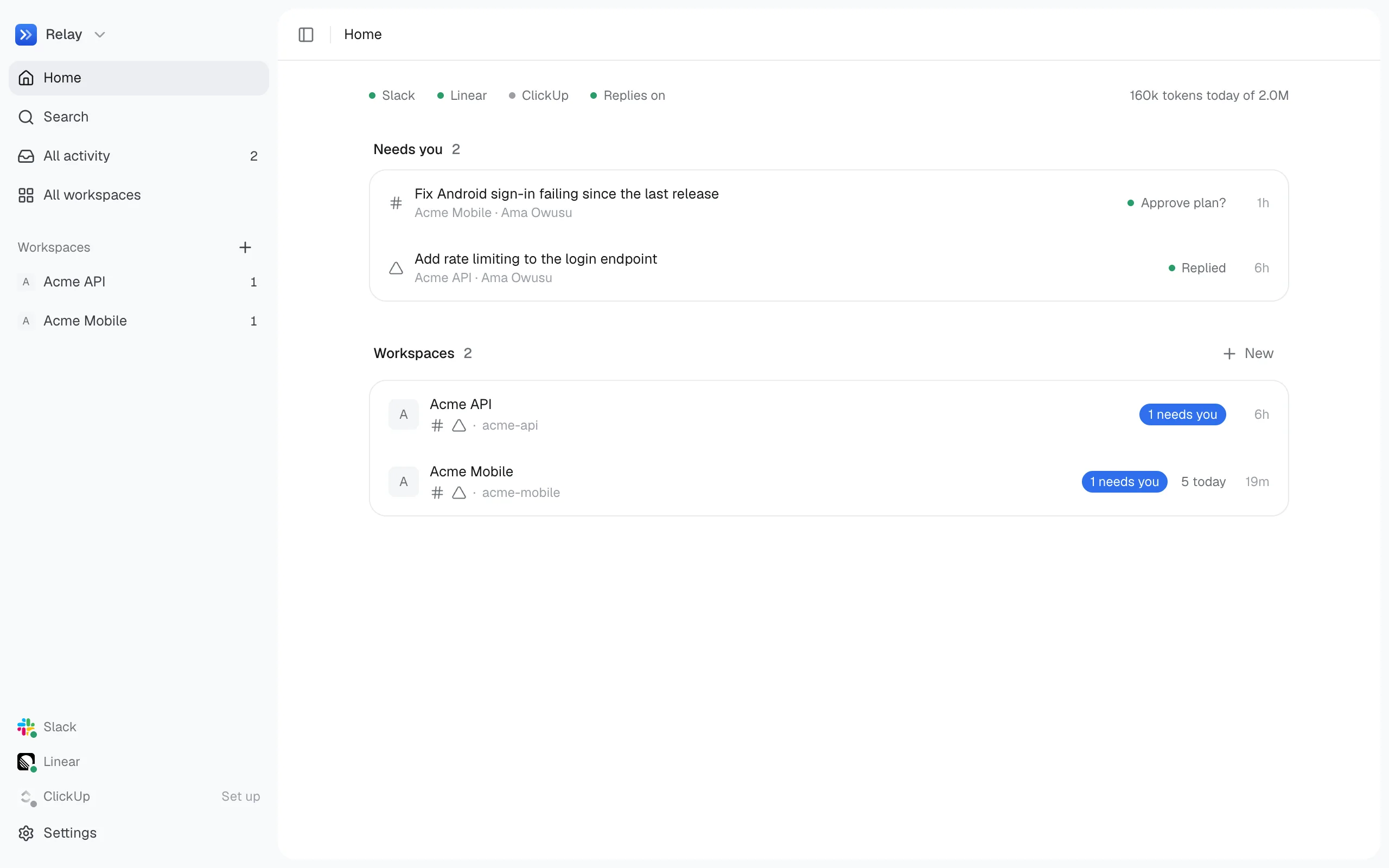
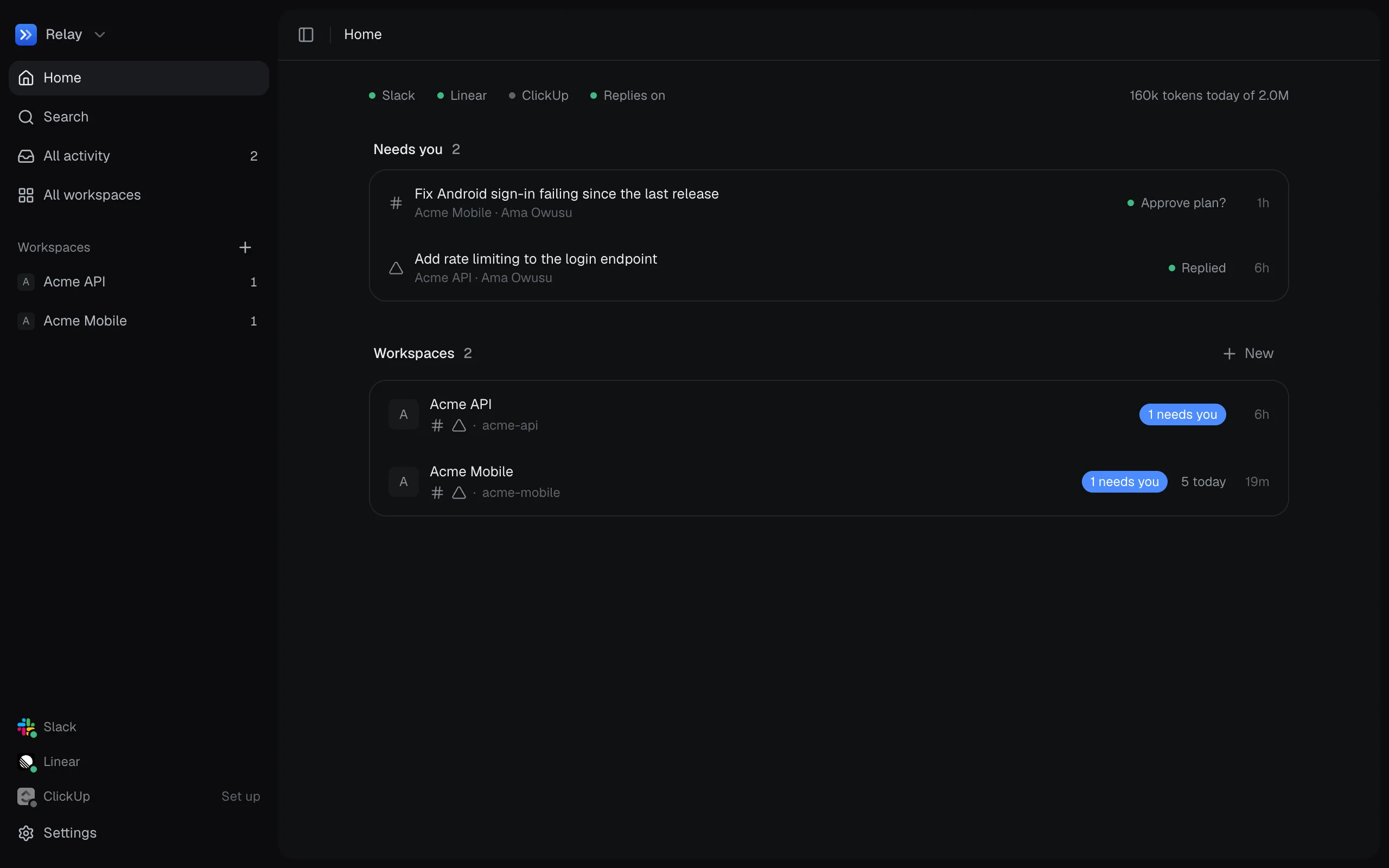
Home shows what needs you, your workspaces, and what Relay finished recently. The line at the top tells you which sources are connected, whether replies are on, and how many tokens Relay has used today.
All activity
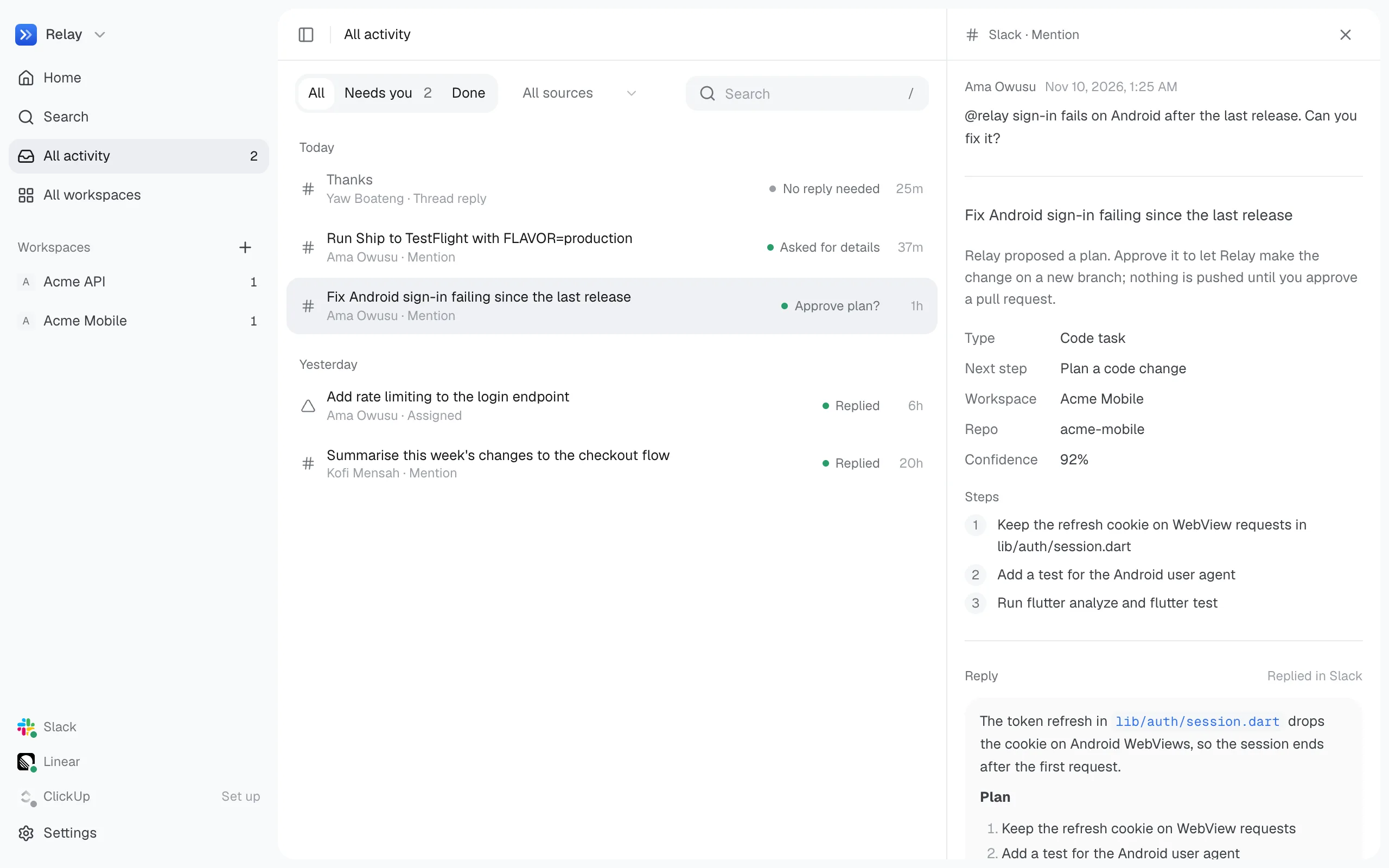
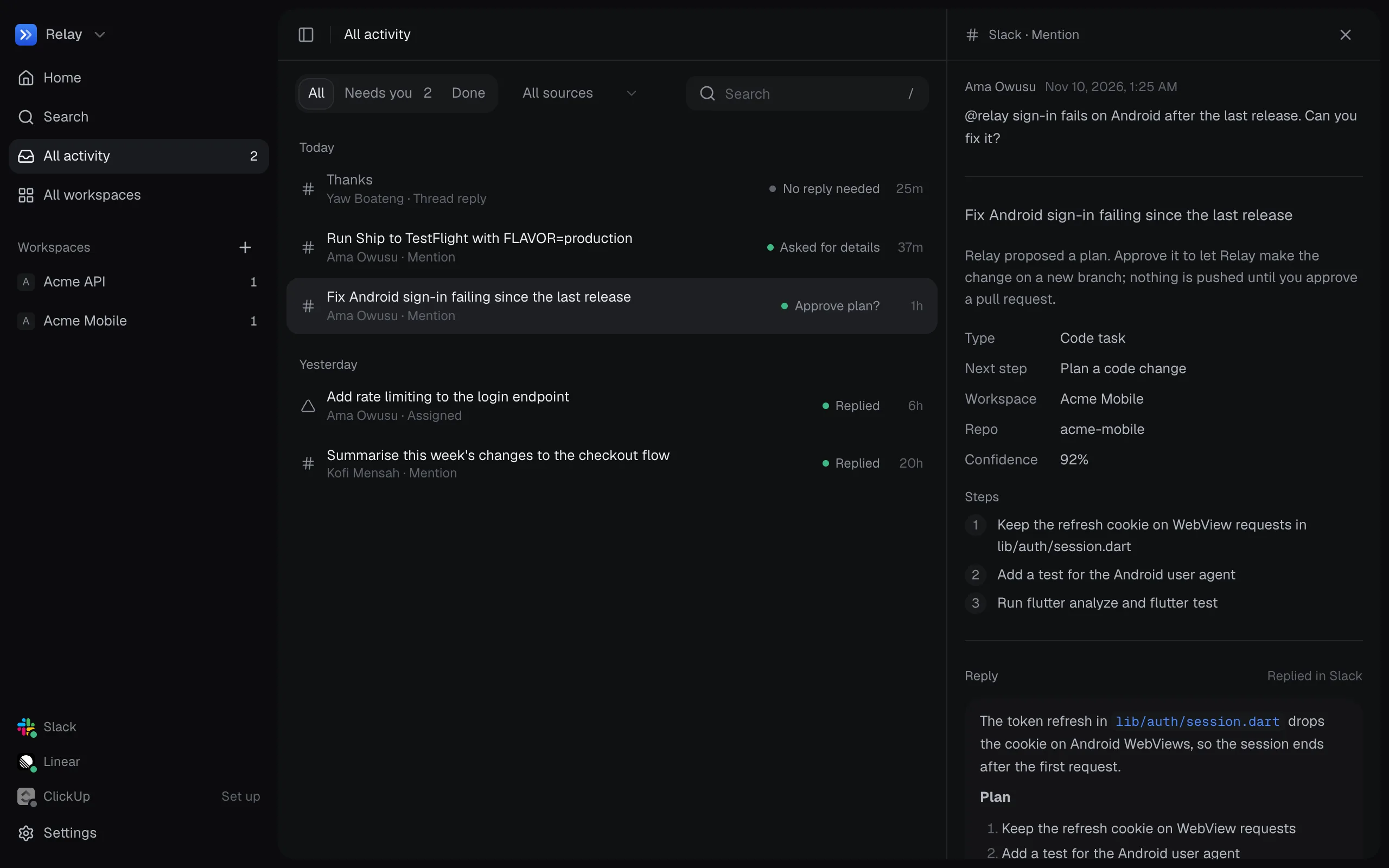
Section titled “All activity”Everything that arrived, from every source, grouped by day. Each workspace also has its own Activity tab with just its events.
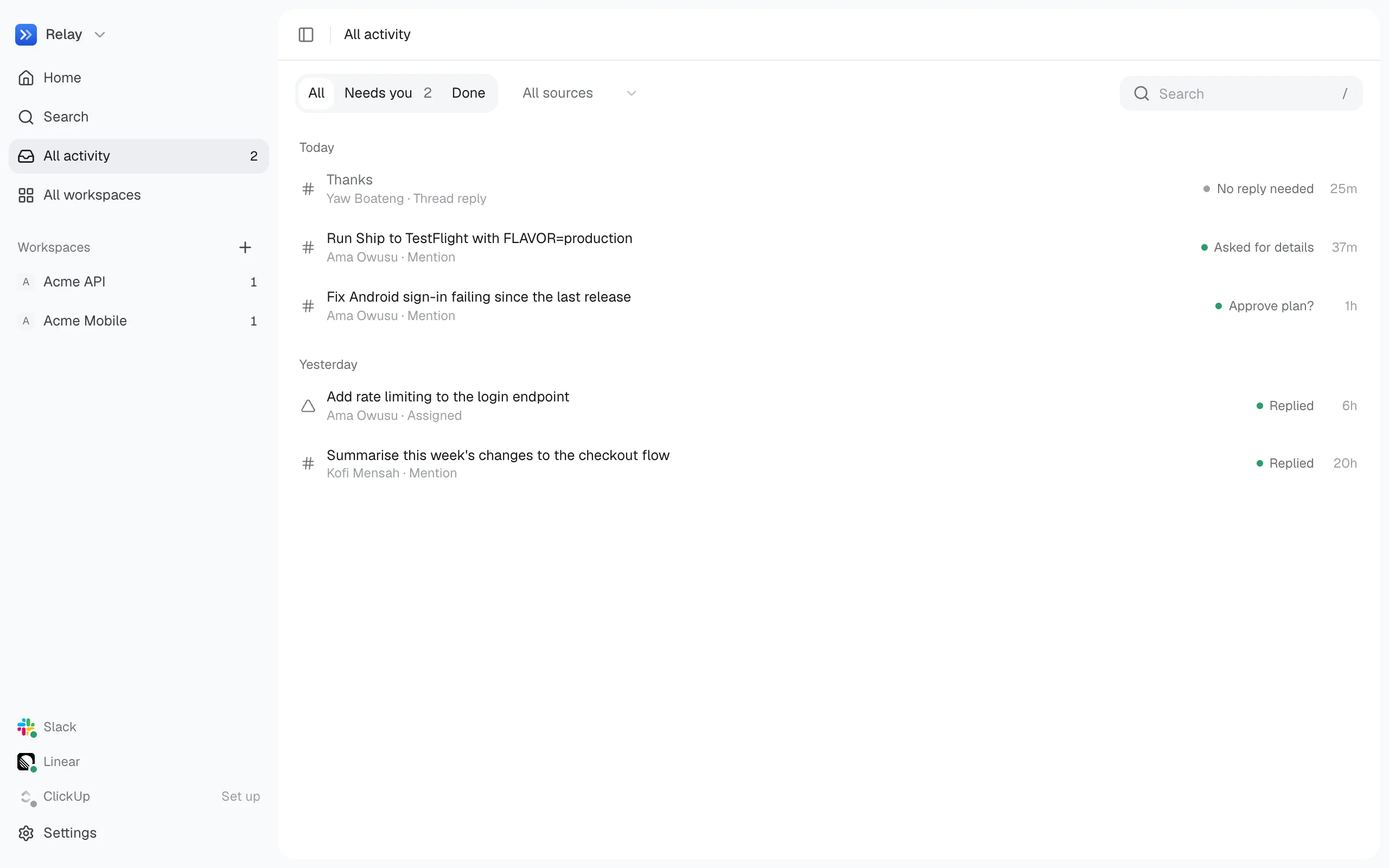
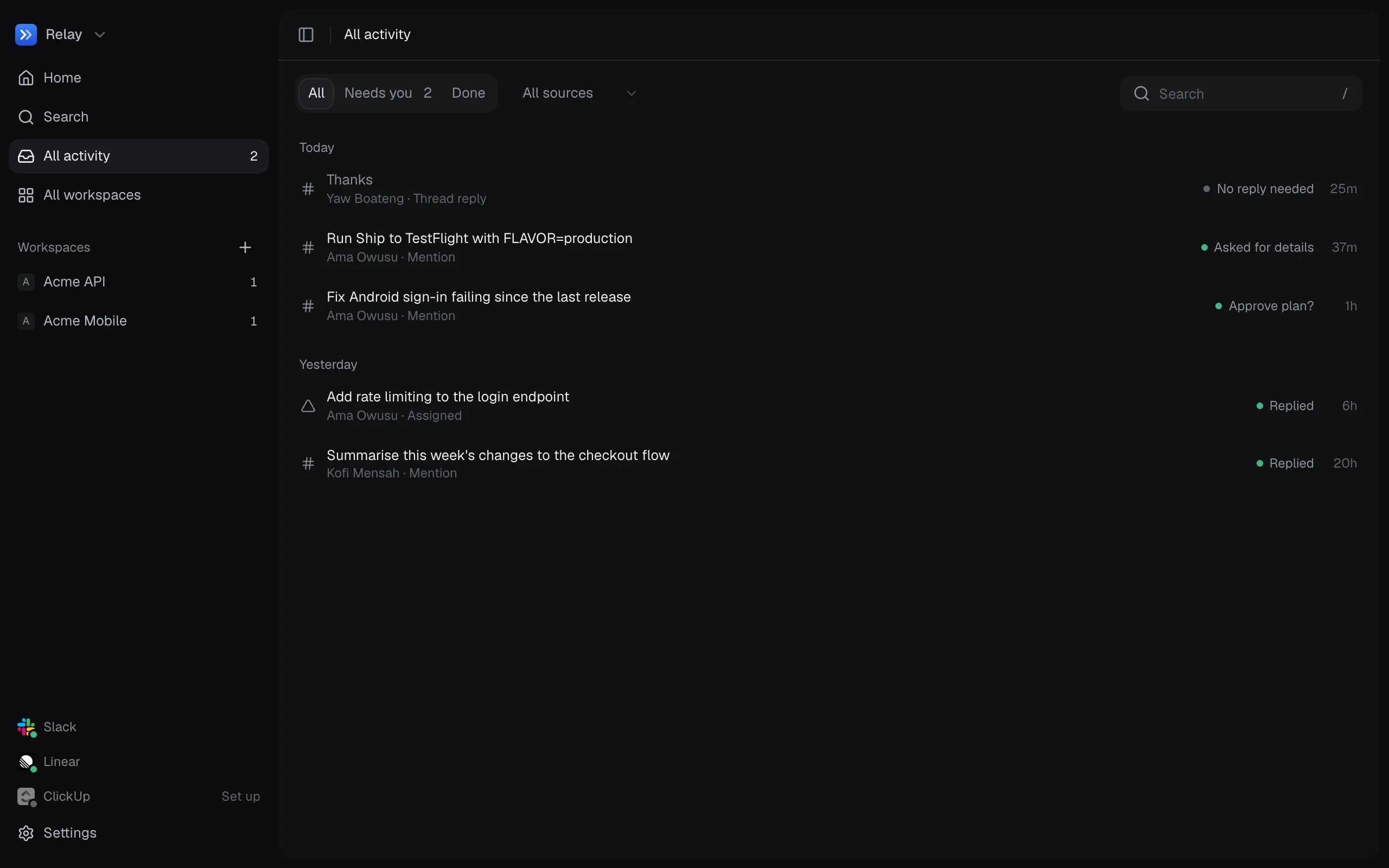
| All · Needs you · Done | Switch between everything, what’s waiting on you, and what’s finished. |
| Sources | Filter to Slack, Linear, ClickUp or chat. |
| Search | Press /. |
| Keyboard | j and k move between events. |
Open an event to see the message, what Relay understood (type, next step, workspace, repo, confidence and steps), the reply it sent or drafted, and any approval waiting on you. A failed event can be retried.
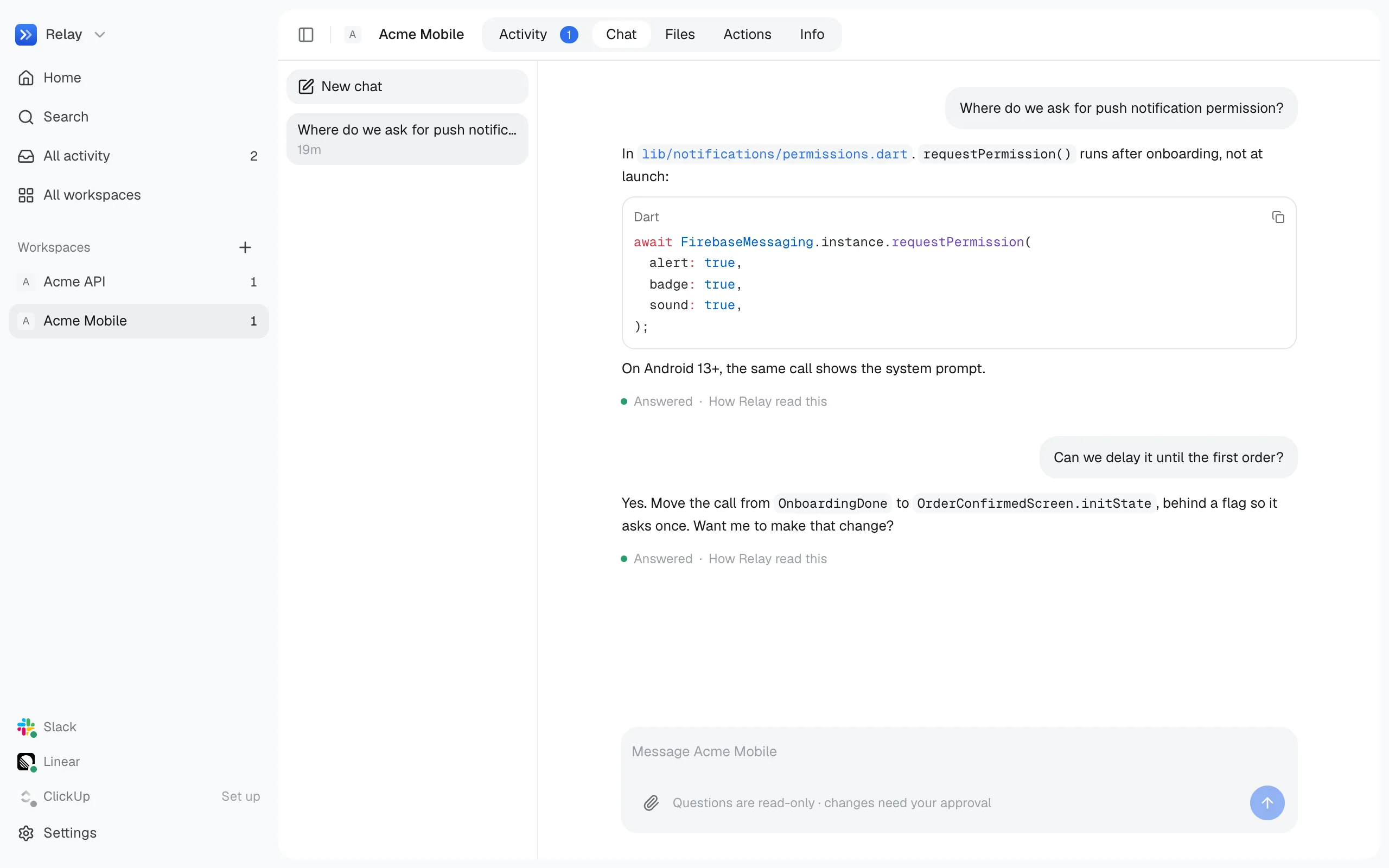
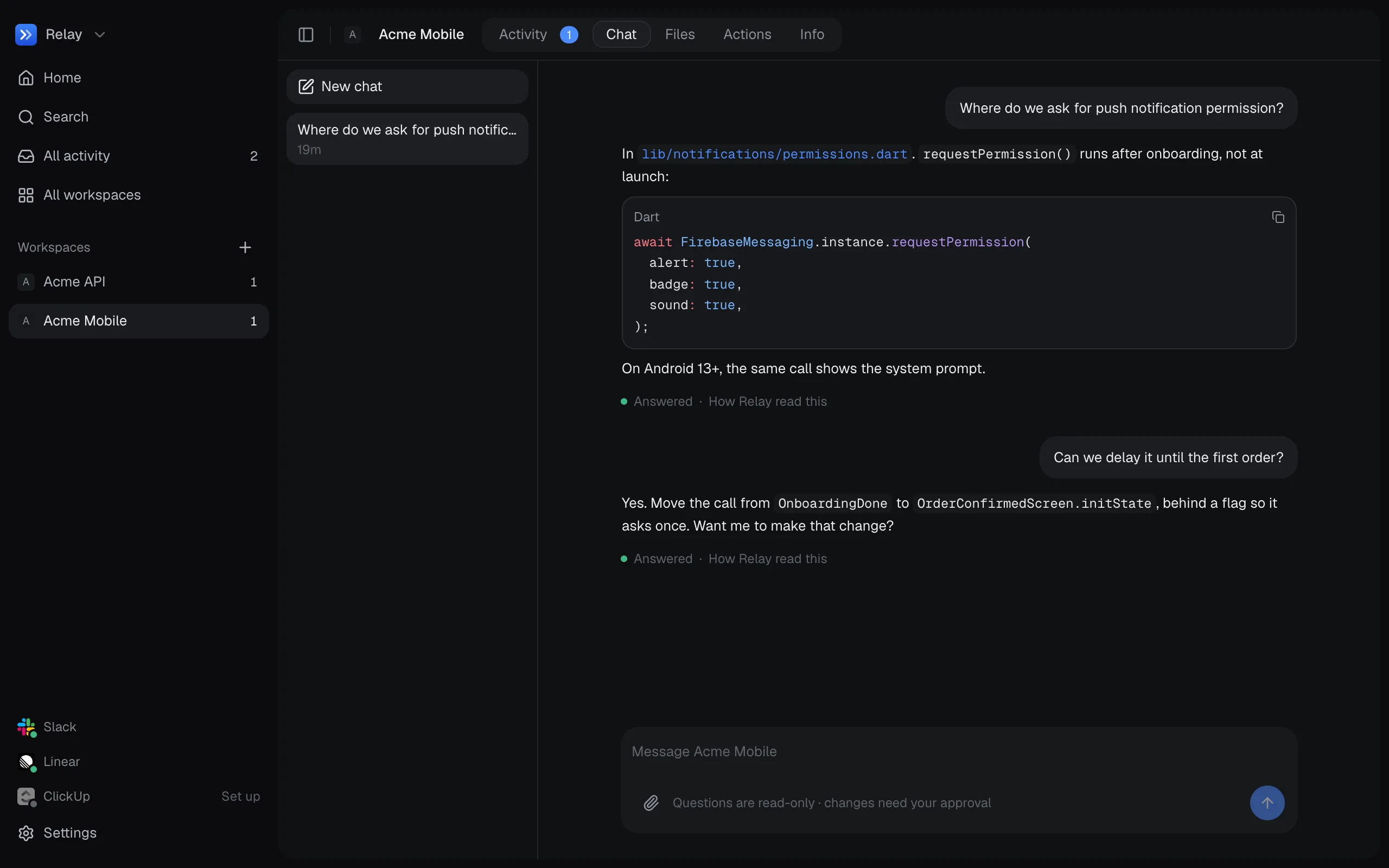
Each workspace has its own chat, with as many conversations as you like. Messages go through the same pipeline as Slack or Linear, but replies stay in the app, even while replying to Slack, Linear and ClickUp is off.
Questions are read-only. Plans and pull requests show Approve buttons. You can attach files and screenshots. Under each answer, How Relay read this shows what it understood.
Command menu
Section titled “Command menu”Press ⌘K to jump anywhere, open a workspace’s chat, or run setup again.
Every reply, approval, commit, pull request and setting change is recorded in Settings → Log.